


Introduction
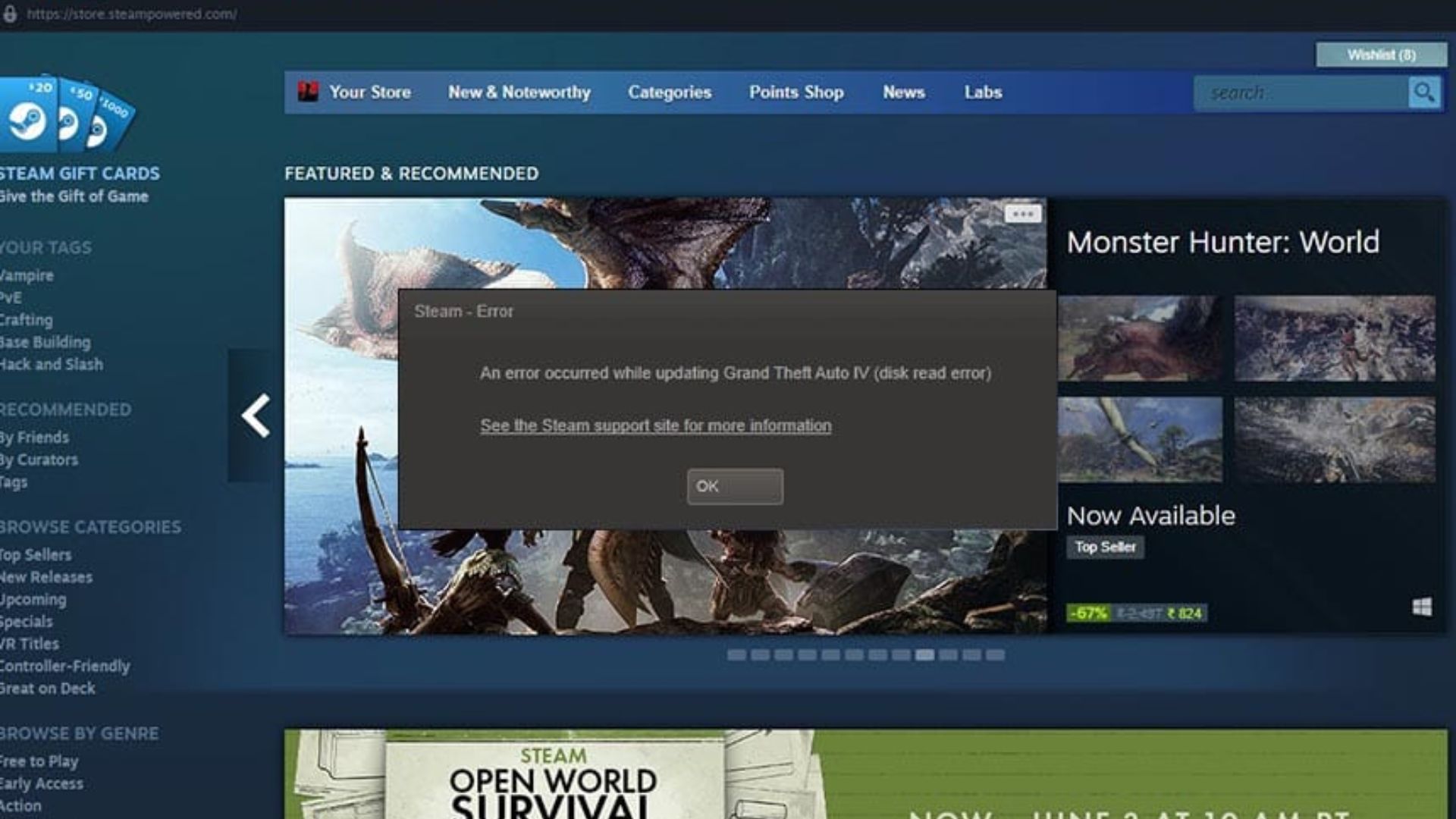
If you are a gamer who uses Steam, you may have encountered a frustrating problem known as the steam disk write error. This issue often appears when installing or updating games and can interrupt the download process completely. For many users, it can feel confusing and difficult to fix, especially if the error appears repeatedly.
The steam disk write error usually occurs when Steam cannot save game data to your storage drive. It may happen due to corrupted files, permission problems, disk issues, antivirus interference, or incorrect Steam settings. Fortunately, most of these problems can be solved with simple troubleshooting steps.
In this detailed guide, we will explain everything you need to know about this error. You will learn what causes it, how to fix it step-by-step, and how to prevent it in the future. Whether you are installing a new game or updating an existing one, understanding the causes behind this error can help you resolve the issue quickly.
By the end of this article, you will have a complete understanding of how to handle the steam disk write error and keep your gaming experience smooth and uninterrupted.
What Is Steam Disk Write Error?
The steam disk write error is a common problem that appears when Steam fails to write game files to your hard drive or storage device. When downloading or updating games, Steam must save large amounts of data onto your computer. If it cannot access the disk properly, the process stops and the error message appears.
This issue can occur with any game on the Steam platform. It may show up during installation, during updates, or even while verifying game files. When the error appears, the download stops and the user must troubleshoot before continuing.
Several factors may cause this problem. For example, the storage drive may have limited permissions, the disk might be full, or files within the Steam directory could be corrupted. Sometimes security software blocks Steam from writing files to the disk.
Even though the message sounds technical, the problem is usually easy to fix. Most solutions involve checking the storage drive, clearing the download cache, or repairing the Steam library.
Understanding what the error means is the first step toward solving it. Once you know that it simply indicates a failure to write data to the disk, you can begin applying the correct solutions.
Common Causes of Steam Disk Write Error
Before fixing the problem, it is helpful to understand why it occurs. The steam disk write error can be triggered by several common issues related to your system or Steam installation.
One frequent cause is corrupted game files. When game files become damaged or incomplete, Steam may fail to write new data during updates. Another common cause is insufficient disk space. If your storage drive is almost full, Steam may not have enough room to store new files.
Permission issues can also lead to this error. If Steam does not have administrator access, the system may block it from writing files to certain directories. This often happens on systems with strict security settings.
Sometimes the issue is related to antivirus or firewall programs. Security software may mistakenly identify Steam activity as suspicious and prevent it from writing files. This interference can stop downloads or updates.
Another cause is hard drive problems, such as bad sectors or disk errors. These issues can prevent certain areas of the disk from storing data correctly. When Steam attempts to write files in those areas, the error appears.
Understanding these possible causes makes troubleshooting easier because you can test each solution methodically.
Signs That Indicate a Disk Write Error
The steam disk write error usually appears as a pop-up message during downloads or updates. However, there are also other signs that indicate this problem.
One common sign is downloads suddenly stopping. The progress bar may freeze or reset repeatedly. When you try to resume the download, the error message appears again.
Another indicator is games failing to update. Even though Steam begins the update process, it cannot finish because it cannot write the necessary files to the disk.
You might also notice slow or unstable downloads. Sometimes Steam repeatedly retries writing files, which slows down the installation process.
In some cases, users see missing or corrupted game files after installation. This happens when the write process fails before completion.
Recognizing these symptoms early can help you quickly identify the problem and apply the correct fix before it becomes more complicated.
Basic Troubleshooting Steps
Before attempting complex solutions, it is always best to start with simple troubleshooting. Many users fix the steam disk write error with just a few basic steps.
First, restart Steam completely. Close the program and reopen it to refresh the connection and system processes. Sometimes temporary glitches cause the error.
Next, restart your computer. This clears background processes that may interfere with Steam’s ability to write files.
Another simple step is checking disk space. Make sure your storage drive has enough free space for the game or update you are downloading.
You should also pause and resume the download. This can sometimes reset the download process and allow Steam to continue writing files.
Finally, check that your internet connection is stable. Although this error is related to disk writing, unstable downloads can sometimes trigger similar problems.
These basic steps solve the issue in many cases, so always try them first before moving to advanced fixes.
Clearing Steam Download Cache
One effective method to fix the steam disk write error is clearing the Steam download cache. The cache stores temporary data that helps speed up downloads, but sometimes it becomes corrupted.
When the cache contains damaged files, Steam may fail to write new data properly. Clearing it forces Steam to rebuild fresh download data.
To clear the cache, open Steam settings and navigate to the Downloads section. There you will find an option labeled “Clear Download Cache.” When you select it, Steam will restart and remove the temporary files.
After the restart, you will need to log back into your Steam account. Once logged in, try downloading the game again. In many cases, the problem disappears because the corrupted cache files have been removed.
This method is quick, safe, and widely recommended by experienced Steam users.
Verifying Game File Integrity
Another reliable solution for the steam disk write error is verifying the integrity of game files. This process checks whether the installed files match the official versions stored on Steam servers.
Sometimes files become corrupted due to incomplete downloads, system crashes, or storage errors. When Steam detects missing or damaged files, it automatically downloads replacements.
To verify files, open your Steam library, right-click the game experiencing the problem, and select Properties. Then navigate to the Installed Files section and choose Verify Integrity of Game Files.
Steam will scan all files associated with the game. If it finds any issues, it will repair them automatically.
This method is especially useful when the error occurs during updates or when a game fails to launch properly after installation.
Changing the Steam Download Region
Your download region settings may also contribute to the steam disk write error. Steam servers are distributed worldwide, and sometimes a particular server region experiences technical problems.
Changing your download region can resolve server communication issues and allow the download process to continue normally.
To do this, open Steam settings and go to the Downloads section. Look for the Download Region option and select a different nearby server location.
After changing the region, restart Steam and attempt the download again. Many users find that this simple change solves persistent installation errors.
While this solution does not directly fix disk issues, it can resolve conflicts between the client and the server during file transfers.
Checking Hard Drive Health
Sometimes the steam disk write error indicates a deeper problem with your storage device. Hard drives and solid-state drives can develop errors over time, especially if they are heavily used.
You can check disk health using built-in operating system tools. These tools scan the disk for bad sectors and repair file system errors.
If the scan finds problems, it may fix them automatically. However, if serious issues are detected, you may need to replace the drive or move your Steam library to a different disk.
Maintaining a healthy storage device is essential for gaming performance. Regular disk checks help prevent errors and ensure that large game files can be stored safely.
Running Steam as Administrator
Permission restrictions can also trigger the steam disk write error. When Steam does not have sufficient system permissions, it may be blocked from writing files to protected directories.
Running Steam as an administrator gives the program full access to the system’s file management features.
To do this, right-click the Steam shortcut and select Run as Administrator. This allows Steam to bypass certain restrictions and write files without interruption.
Many users report that this simple step immediately resolves installation problems.
However, administrator mode should be used carefully, as it grants programs greater control over system files.
Temporarily Disabling Antivirus Software
Security software plays an important role in protecting your computer, but sometimes it interferes with Steam operations. Certain antivirus programs mistakenly block Steam file activity, which can trigger the steam disk write error.
Temporarily disabling the antivirus program during downloads can help determine whether it is causing the issue.
If the error disappears after disabling the antivirus, you can add Steam to the program’s exception list. This allows Steam to operate normally while keeping your system protected.
Always remember to re-enable your antivirus software after completing the download or update.
Repairing the Steam Library Folder
Another solution is repairing the Steam library folder. This folder stores all installed game files and configuration data. If it becomes corrupted, Steam may fail to write new data.
Steam includes a built-in tool that checks the library folder for errors and repairs them automatically.
To access this tool, open Steam settings, go to Storage, and select the library folder you want to repair. Then choose the repair option.
Once the process is complete, restart Steam and attempt the download again. This often resolves errors caused by folder permission or structure issues.
Preventing Steam Disk Write Errors in the Future
Preventing the steam disk write error is easier than fixing it repeatedly. By maintaining your system properly, you can avoid most causes of this problem.
First, keep your storage drive clean and organized. Avoid filling the disk completely, as games require significant space for installation and updates.
Second, update your operating system and Steam client regularly. Updates often fix bugs and compatibility issues that may cause disk errors.
Third, perform routine disk checks. Scanning your drive occasionally ensures that bad sectors or file system errors are repaired early.
You should also configure antivirus exceptions for Steam. This prevents security software from interfering with game downloads.
By following these preventive measures, you can maintain a stable gaming environment and avoid repeated installation problems.
FAQs
What causes the steam disk write error?
The most common causes include corrupted files, disk permission issues, insufficient storage space, antivirus interference, or hard drive errors.
Can a damaged hard drive cause this error?
Yes, a failing hard drive or bad sectors can prevent Steam from writing files, which may trigger the error message.
Is it safe to clear the Steam download cache?
Yes, clearing the cache is completely safe. It only removes temporary files and does not delete your installed games.
Does reinstalling Steam fix the problem?
In some cases, reinstalling Steam can fix the error if the client files are corrupted. However, it should be used as a last resort.
Why does the error appear during updates?
Updates require Steam to replace or modify existing files. If the program cannot access the disk properly, the update process fails and the error appears.
Conclusion
The steam disk write error is a frustrating problem for many gamers, but it is usually easy to resolve with the right troubleshooting steps. Most cases occur due to corrupted files, permission restrictions, antivirus interference, or disk issues.
By following the solutions explained in this guide—such as clearing the download cache, verifying game files, checking disk health, and repairing the Steam library—you can quickly restore normal functionality.
Regular system maintenance, proper storage management, and updated software also play an important role in preventing this error from occurring again.
With the right knowledge and preventive steps, you can enjoy uninterrupted downloads and updates on Steam while keeping your gaming experience smooth and reliable.
