


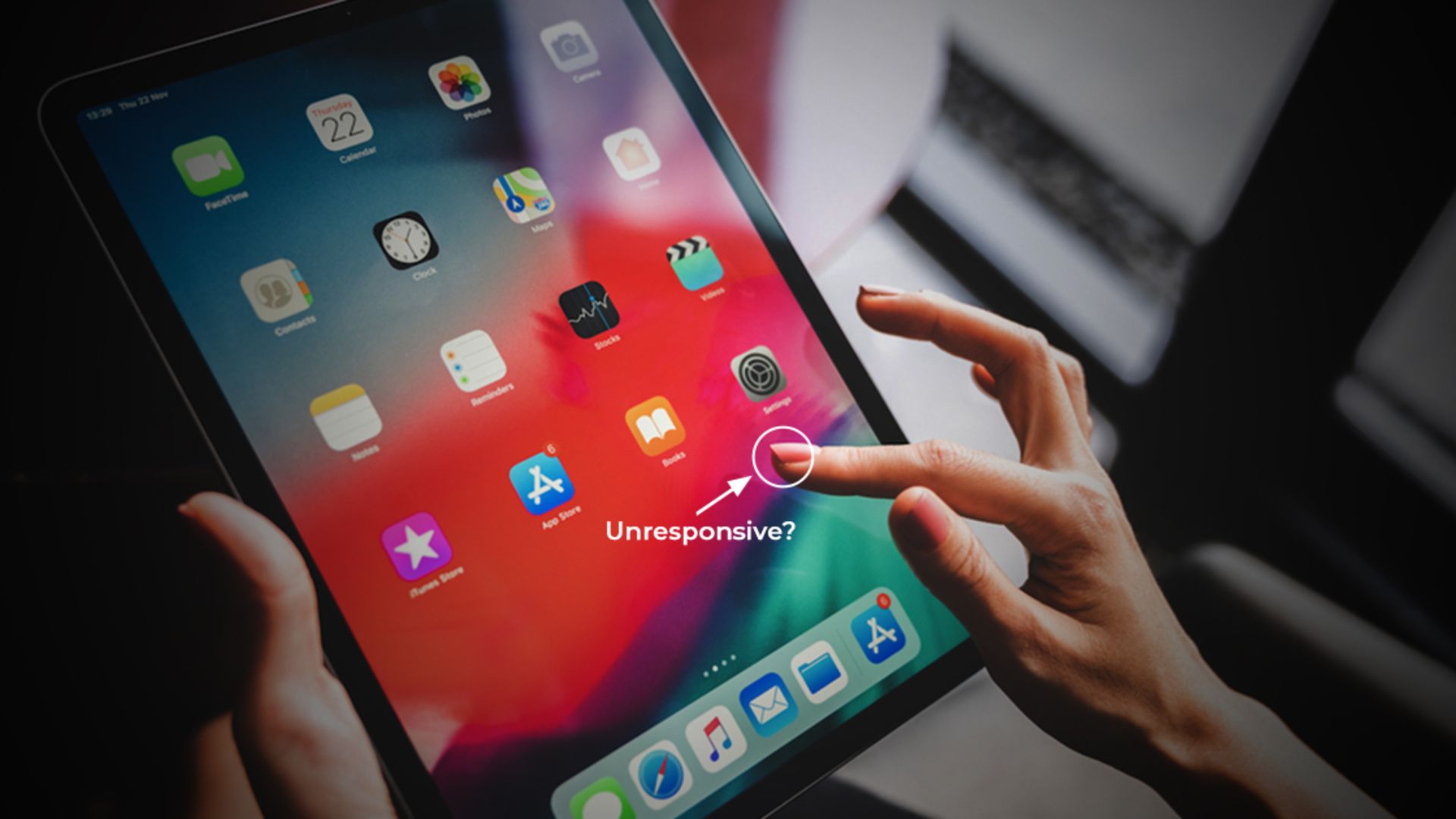
A phone screen that does not respond to touch can be very frustrating, especially when you need to make a call, send a message, or use important apps. This problem can happen on any smartphone, whether Android or iPhone, and it can be caused by software bugs, hardware damage, or screen issues.
In this guide, you will learn how to fix phone screen unresponsive touch problems step by step using simple and effective methods.
Why Phone Screen Touch Stops Working
Before fixing the problem, it is important to understand why the touch screen stops responding. The issue can be either software-related or hardware-related.
Common causes include:
- Phone freezing
- Water damage
- Screen protector issues
- Low storage
- Software bugs
- Broken screen digitizer
- Overheating
- Faulty charger
Understanding the cause helps you choose the right solution.
Restart Your Phone First
The first and easiest solution is to restart your phone. Many times, the phone screen becomes unresponsive due to temporary software glitches.
Restarting clears memory and stops background processes that may be causing the issue.
To restart:
- Hold the power button
- Tap restart
- Wait for the phone to reboot
If your phone is completely frozen, press and hold the Power + Volume Down button for 10–15 seconds to force restart.
Remove Screen Protector and Clean Screen
Sometimes the problem is not with the phone but with the screen protector or dirt on the screen. Dust, oil, or moisture can prevent the screen from detecting touch properly.
Steps to fix:
- Remove screen protector
- Clean screen with microfiber cloth
- Do not use water directly
- Dry the screen completely
- Try using the phone again
This simple step solves many touch screen problems.
Check If Charger Is Causing the Issue
Many people do not know that a faulty charger can cause ghost touch or unresponsive touch issues. Cheap chargers often cause voltage fluctuations.
Try this:
- Unplug the charger
- Use the phone without charging
- Use original charger
- Try a different charging cable
If the touch works normally after unplugging, the charger is the problem.
Free Up Storage Space
Low storage can slow down the phone and cause the screen to freeze or become unresponsive.
To free storage:
- Delete unused apps
- Delete large videos
- Clear cache
- Move files to cloud or SD card
- Restart the phone
Keeping at least 2–3 GB free storage helps the phone run smoothly.
Update Phone Software
Software bugs can also cause touch screen issues. Phone manufacturers release updates to fix bugs and improve performance.
To update:
- Go to Settings
- Tap Software Update
- Download and Install
- Restart phone after update
Updating the phone often fixes touch screen lag and freezing issues.
Boot Phone in Safe Mode
Safe mode helps you check if a third-party app is causing the touch screen problem.
Steps:
- Hold power button
- Tap and hold Power Off
- Select Safe Mode
- Phone will restart in Safe Mode
If touch works in safe mode, then an app is causing the issue. Uninstall recently installed apps.
Reset Phone Settings
If nothing works, resetting phone settings can fix the issue without deleting your data.
Steps:
- Go to Settings
- System
- Reset
- Reset All Settings
This will reset WiFi, Bluetooth, and system settings but not delete photos or apps.
Factory Reset as Last Option
Factory reset should be the last option because it deletes all data from your phone.
Before reset:
- Backup photos
- Backup contacts
- Backup files
To factory reset:
- Go to Settings
- System
- Reset
- Factory Data Reset
This will make the phone like new and often fixes software-related touch issues.
Hardware Problems That Cause Unresponsive Touch
If none of the solutions work, the problem may be hardware related.
Hardware issues include:
- Broken screen digitizer
- Water damage
- Phone dropped on floor
- Internal connector loose
- Screen damage from pressure
In this case, you may need screen replacement.
Software vs Hardware Touch Screen Problem
| Issue Type | Symptoms | Solution |
|---|---|---|
| Software Problem | Phone freezes, touch works after restart | Update or reset phone |
| Screen Protector Issue | Touch works after removing protector | Replace protector |
| Charger Issue | Touch issue while charging | Change charger |
| Water Damage | Random touch or no touch | Repair needed |
| Broken Screen | Touch not working in specific area | Screen replacement |
This table helps you quickly identify the problem.
Benefits of Fixing Touch Screen Issue Early
Fixing the problem early can prevent bigger damage and expensive repairs.
Benefits include:
- Saves repair cost
- Improves phone speed
- Prevents screen replacement
- Better phone performance
- Avoids data loss
- Extends phone life
Early troubleshooting is always better than repair.
Drawbacks of Ignoring Touch Screen Problem
If you ignore the problem, it may get worse over time.
Possible issues:
- Screen stops working completely
- Data loss
- Expensive repair
- Phone overheating
- Battery draining fast
- Apps crashing frequently
So it is important to fix the issue as soon as possible.
Who This Guide Is Best For
This guide is best for:
- Android users
- iPhone users
- People with frozen phone screens
- Users with ghost touch problems
- People whose phone touch works sometimes
- Users who dropped their phone
- People with slow phone touch response
Basically, anyone facing touch screen problems can use these solutions.
Practical Example Scenario
For example, if your phone touch stops working while charging, the problem is likely a faulty charger. If the touch stops after installing an app, the issue is software related.
If only one part of the screen does not respond, the screen digitizer is probably damaged. Understanding the situation helps you fix the issue faster.
Expert Tips to Prevent Touch Screen Problems
Here are some expert tips:
- Use original charger
- Do not overheat phone
- Keep storage free
- Use good screen protector
- Avoid water exposure
- Restart phone once a week
- Update software regularly
- Do not install unknown apps
These tips can prevent future touch screen problems.
FAQ – How to Fix Phone Screen Unresponsive Touch
Why is my phone screen not responding to touch?
Your phone screen may not respond due to software glitches, low storage, faulty charger, water damage, or a broken screen digitizer.
How do I fix an unresponsive touch screen without losing data?
You can restart the phone, clean the screen, remove the screen protector, update software, or reset settings without losing data.
Can a screen protector cause touch screen problems?
Yes, thick or damaged screen protectors can reduce touch sensitivity and cause unresponsive touch issues.
How do I force restart a frozen phone?
Press and hold the Power button and Volume Down button together for 10–15 seconds until the phone restarts.
When should I replace my phone screen?
If touch does not work in specific areas or after all software fixes fail, you may need to replace the screen.
Does factory reset fix touch screen problems?
Yes, factory reset can fix software-related touch screen problems but will delete all data from the phone.
Key Takeaways
- Restart your phone first
- Clean screen and remove protector
- Check charger and cable
- Free up storage space
- Update phone software
- Use safe mode to find faulty apps
- Reset settings or factory reset
- Hardware issues require screen repair
Final Verdict
If your phone screen is not responding, do not panic because most touch screen problems are caused by software issues and can be fixed easily at home. Start with simple solutions like restarting, cleaning the screen, and updating software. If the problem continues, reset the phone or check for hardware damage.
By following this complete guide on how to fix phone screen unresponsive touch, you can troubleshoot the problem step by step and get your phone working normally again without expensive repairs.
